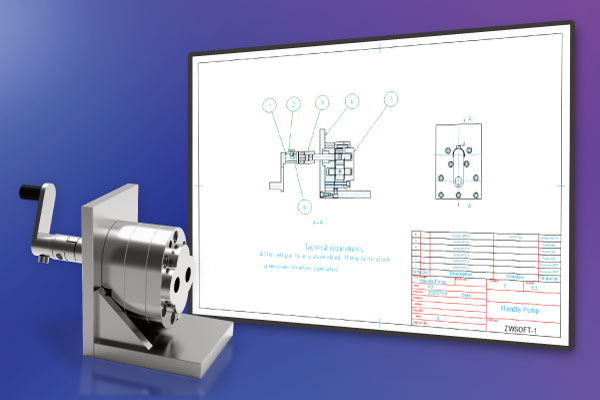

When it comes to mechanical design, engineers agree that 2D drafting is just as important as 3D modeling. A proper mechanical drawing enables manufacturers to easily understand geometric information and fabrication requirements. So, how can you improve design efficiency? Here are six useful ZWCAD tips for you.

Reuse Existing Mechanical Design Elements with Design Center
Many mechanical components are repeatedly used and reused throughout the design process. In this situation, you need a tool like Design Center, which allows you to quickly locate existing drawings and even browse lists of blocks with previews, layers, linetypes, and more. To open it in ZWCAD, simply use the shortcut Ctrl + 2.
Since you can drag mechanical elements documented in various files directly from Design Center into the model space, managing and reusing component files in ZWCAD becomes highly convenient. This method is much faster and more efficient than browsing folders and inserting blocks manually.
Access and Store Mechanical Tools in Tool Palettes
As its name suggests, Tool Palettes stores frequently used parts, hatch patterns, annotation symbols, drawing tools, and common mechanical elements such as nuts, bolts, and more. After opening it using Ctrl + 3, you can drag standard bolts directly into the model space.
Additionally, bolts you design yourself can be dragged into Tool Palettes for future use. This feature makes inserting components and annotation symbols much easier.
Select Mechanical Elements Smartly
Regarding annotations, we often hear feedback such as:
“I need to delete certain types of dimensions before reorganizing the drawing. Can I select and delete them all at once?”
This is a great point—handling these elements one by one can be extremely time-consuming, especially in mechanical design, where drawings typically contain countless elements.
The Smart Select feature solves this problem. When you run the SMARTSEL command, the Smart Select panel appears and displays the properties of all objects in the current drawing. You can then customize a filter based on object type, color, layer, and more. All objects matching the filter criteria will be highlighted immediately in the model space. This makes bulk selection quick and efficient.
Execute Commands with Mouse Gestures
Normally, to run commands in mechanical design software, we type shortcuts. However, many commands have long and similar names, such as DIMALIGNED and DIMANGULAR.
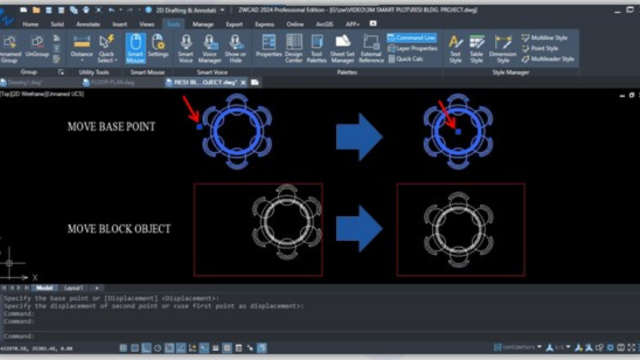
ZWCAD provides the Smart Mouse tool, which lets you assign mouse gestures to specific commands. By holding the right mouse button and drawing a gesture, you can call the assigned command instantly.
Add Annotative Scale to Mechanical Elements
As mentioned earlier, mechanical designers work with numerous annotations, especially dimensions. These dimensions can be difficult to manage when your layout contains viewports of different scales.
To save you from manually adjusting annotation sizes, ZWCAD offers the Annotative Scale feature. After applying an annotative scale to annotation objects (text, hatch patterns, etc.), they automatically adjust to match each viewport’s scale. This becomes especially convenient when multiple viewports in a layout use different scales.
Print Mechanical Objects Smartly
You may be familiar with creating multiple frames or boundaries around different mechanical objects. However, organizing and printing all of them at once can be troublesome, as you’d typically need to select each one manually.
Fortunately, Smart Plot automatically identifies frames based on blocks, layers, or closed polylines (rectangular boundaries). Once recognized, you can print them together, convert them into single-page or multi-page PDF files, or even export each frame as an individual DWG file. In short, Smart Plot aids in both planning and managing drawings more efficiently.
Read more:
- Introducing ZWCAD 2026: Design with Speed, Innovate with Ease
- Introducing ZWCAD MFG 2025: Advanced 2D CAD for Manufacturing
- Discover the Power of a More Flexible Workspace in ZWCAD 2025
Contact us for free and detailed advice: