
On September 29, 2026, Microsoft released Windows 11, version 26H2, also known as the Windows 11 2026 Update. The update builds on versions 24H2 and 25H2 and starts a new support lifecycle for eligible devices. For businesses, upgrading also means checking critical applications, peripherals, and device management policies before a wider rollout.
How is Windows 11 26H2 delivered?
Windows 11 26H2 shares the same servicing foundation as versions 25H2 and 24H2. On eligible devices running either version, Microsoft delivers 26H2 through a small enablement package. Many components of the new release have already reached devices through monthly updates; the package activates the corresponding changes. In most cases, installation is completed with a single restart.
Microsoft is rolling out the update in phases. If a PC does not yet show 26H2 in Windows Update, it does not necessarily mean something is wrong. The update may not have reached that device yet, or Microsoft may have temporarily paused it because of a known compatibility issue.
Notable changes for businesses
1. Restore settings when replacing or recovering a device
On eligible commercial devices, Windows settings backup is enabled by default in version 26H2. It helps preserve supported Windows settings and the list of apps from Microsoft Store. When an employee receives a replacement PC or needs to restore their work environment, this information can be brought back instead of configuring everything from the beginning. Backup policies already set by administrators continue to apply.

Microsoft has also expanded the first sign-in restore experience to certain environments, including Microsoft Entra hybrid-joined devices, Cloud PCs, and shared devices. IT teams should check eligibility and existing policies before incorporating this capability into their device provisioning process.
2. Additional security capabilities for administrators
Administrator protection allows administrative tasks to run with privileges granted when needed, rather than keeping administrator rights active throughout a session. It is designed to reduce the risk of an application or account being misused to gain elevated privileges. Administrator protection is off by default and can be managed through Microsoft Intune or Group Policy.
Sysmon is now built into Windows. It records system events in Windows Event Log; security teams can configure filters and use those events to investigate unusual activity. Built-in Sysmon is also off by default, so an administrator must enable and configure it before use.
Microsoft also says users can turn Smart App Control on or off without performing a clean installation of Windows. When enabled, it helps block untrusted or potentially harmful applications.
3. Improvements to File Explorer and search
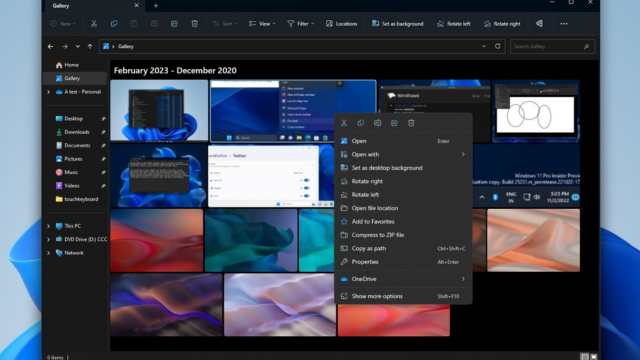
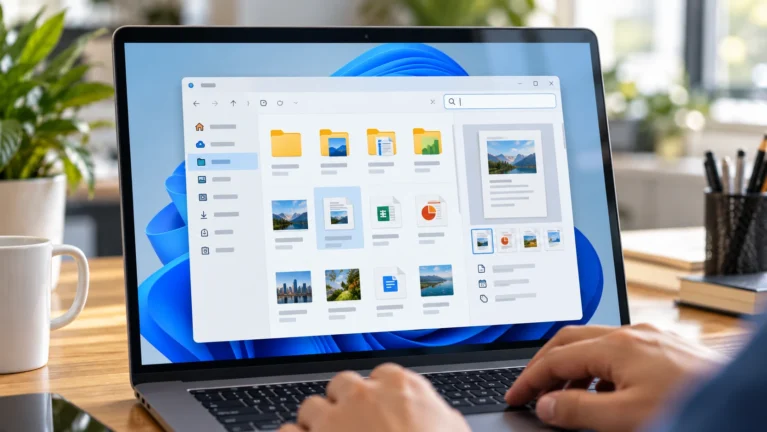
Several File Explorer improvements are enabled by default for commercial devices in 26H2. According to Microsoft, File Explorer can preserve view and sort preferences in folders such as Downloads and Documents when another application opens those locations directly. File Explorer Home is also more responsive.
Windows Search adds result previews and makes it clearer whether a result is an app, file, setting, or web page. App search also handles partial names and typing mistakes more effectively. These small changes can be useful in daily work, particularly on PCs with many applications and documents.
Microsoft continues to improve Windows 11 through monthly updates. As a result, some capabilities mentioned in the 26H2 documentation may have appeared on a device before that device moves to version 26H2.
4. Support for device provisioning and recovery
With Windows Autopilot device preparation, device association helps organizations identify trusted devices before enrollment. This supports device-targeted policies and further customization during initial setup. Microsoft also describes recovery options such as point-in-time restore, which can return a PC to a recent restore point, including apps, settings, and personal files within the feature’s supported scope.
Organizations should assess these management and recovery capabilities against their own configurations. For example, Quick machine recovery remains off on domain-joined or enterprise-managed devices unless an administrator enables it.
How to check for and install Windows 11 26H2
On an eligible PC running Windows 11 24H2 or 25H2, users can open Settings > Windows Update, turn on Get the latest updates as soon as they’re available, and check for updates. Once 26H2 is ready for the device, the option to download and install it will appear.
For managed environments, administrators can continue using their existing deployment tools and policies. Microsoft says 26H2 is available through organizational update management tools, including Windows Autopatch. Before rolling it out to everyone, businesses should test it on a representative group of devices to validate applications, drivers, and important workflows.
Which compatibility issues should businesses check?
Microsoft’s Windows release health page provides updates on rollout status and known issues. As of early October 2026, areas businesses may want to examine during testing include:
- Older USB audio devices: Some USB Audio Class 1.0 devices may produce no sound or show a Code 10 error.
- Domain-joined PCs: In certain configurations using Credential Guard and Machine Identity Isolation, devices may lose their trust relationship with on-premises Active Directory, preventing users from signing in with valid credentials.
- Virtual desktop environments: Microsoft has reported cases where a black screen appears or the desktop fails to load after sign-in, primarily on Azure Virtual Desktop hosts using FSLogix.
- Older applications using AC-3 audio: Some applications that rely on Windows’ AC-3 decoder may close unexpectedly after updates released on or after September 22, 2026.
These issues do not affect every device. Before a broad rollout, IT teams should compare their software and hardware inventory with Microsoft’s latest status reports, as the resolution status may change.
Windows 11 26H2 support lifecycle
Moving to 26H2 starts a new support lifecycle for the corresponding Windows 11 edition. Under Microsoft’s published schedule, Home and Pro editions receive updates until October 10, 2028, while Enterprise and Education editions receive updates until October 9, 2029.
This matters particularly for organizations still using Windows 11 24H2: the Home and Pro editions of 24H2 reach the end of updates on October 13, 2026. IT teams should inventory both the Windows version and the edition installed across their devices to set upgrade priorities.
What should businesses do before deployment?
- Inventory devices: Identify PCs running 24H2, 25H2, or an earlier version. Record their edition, hardware configuration, and update management method.
- Select a pilot group: Include IT devices and users from departments that rely on specialized applications or peripherals.
- Test critical workflows: Check domain sign-in, VPN, accounting or ERP applications, printers, audio devices, and virtual desktop environments where applicable.
- Prepare support: Review backups, the process for reporting problems, and how to pause the rollout if the pilot group finds an issue.
- Follow Microsoft’s updates: Check the Windows 11 26H2 release health page before expanding deployment to the next group.
Reference: Microsoft Windows IT Pro Blog.
Learn more
Contact Vietbay for advice tailored to your business.