
ChatGPT for Excel and Claude for Excel are increasingly relevant to professionals who use Microsoft Excel for reporting, accounting, data analysis, and planning. Both tools bring AI into the spreadsheet interface, allowing users to ask questions in natural language, analyze information, and make changes to workbooks without constantly copying data into a separate chatbot.
So how do ChatGPT for Excel and Claude for Excel differ? Which is better suited to your daily work, can you use them for free, and what should businesses consider before connecting their data? Vietbay compares the features and terms described in official documentation from OpenAI and Anthropic, with information reviewed for November 2026.
Scope: This article compares documented features, access requirements, and practical use cases. It is not a controlled benchmark of the two tools on the same dataset, and does not claim independent speed or accuracy results.
1. What are ChatGPT for Excel and Claude for Excel?
ChatGPT for Excel – OpenAI’s spreadsheet assistant
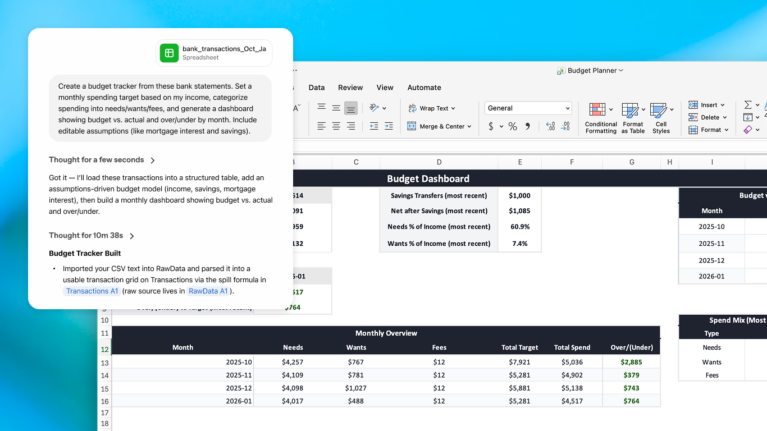
ChatGPT for Excel is an add-in developed by OpenAI that runs in an Excel sidebar. Users can ask it to create spreadsheets, explain formulas, clean data, analyze multiple worksheets, and update financial models as assumptions change. OpenAI expanded access to this product in 2026 and also offers a separate ChatGPT integration for Google Sheets.
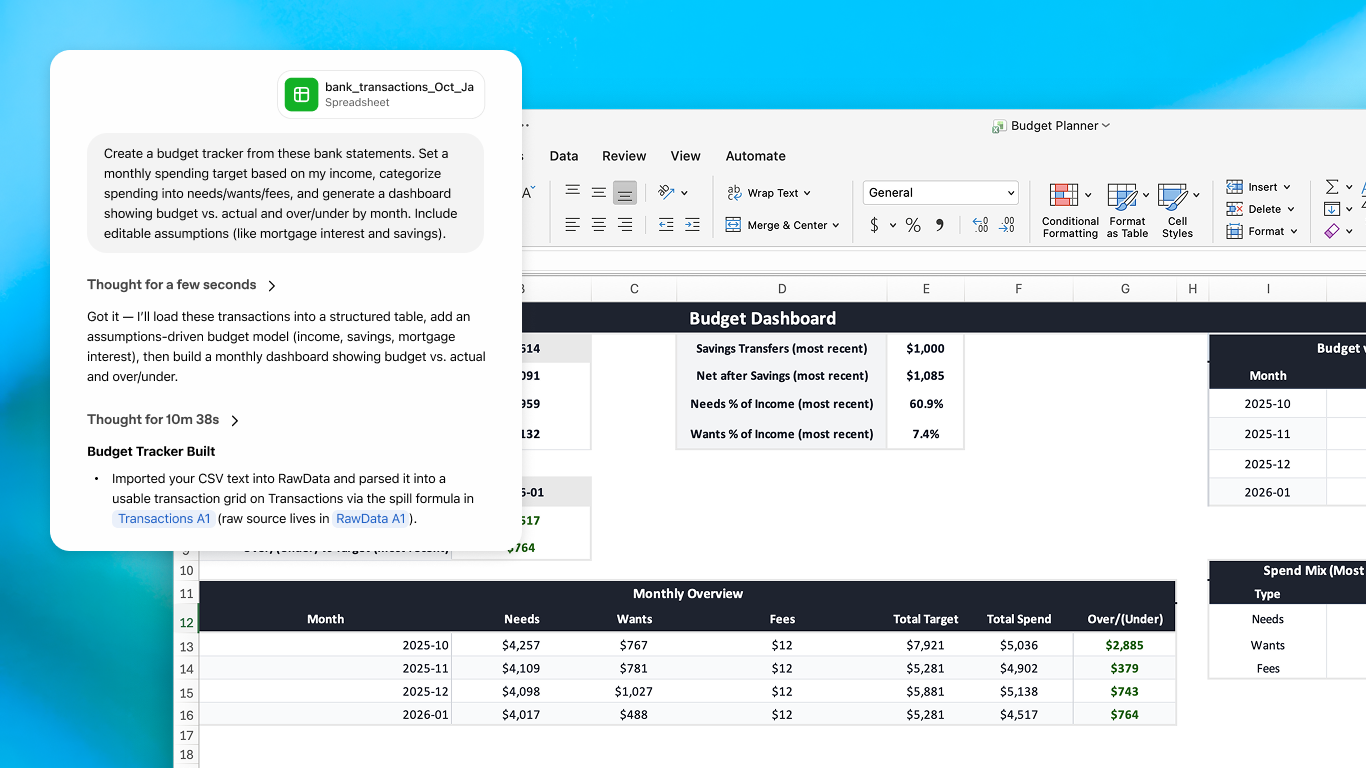
Beyond individual questions, ChatGPT for Excel supports Skills for reusable workflows and apps for working with permitted data sources. Availability depends on your subscription and workspace administrator settings.
Claude for Excel – Anthropic’s spreadsheet assistant
Claude for Excel is Anthropic’s Excel-integrated AI experience. It can work with workbooks containing many sheets, explain cell relationships, trace calculation dependencies, troubleshoot formulas, and adjust assumptions in models.
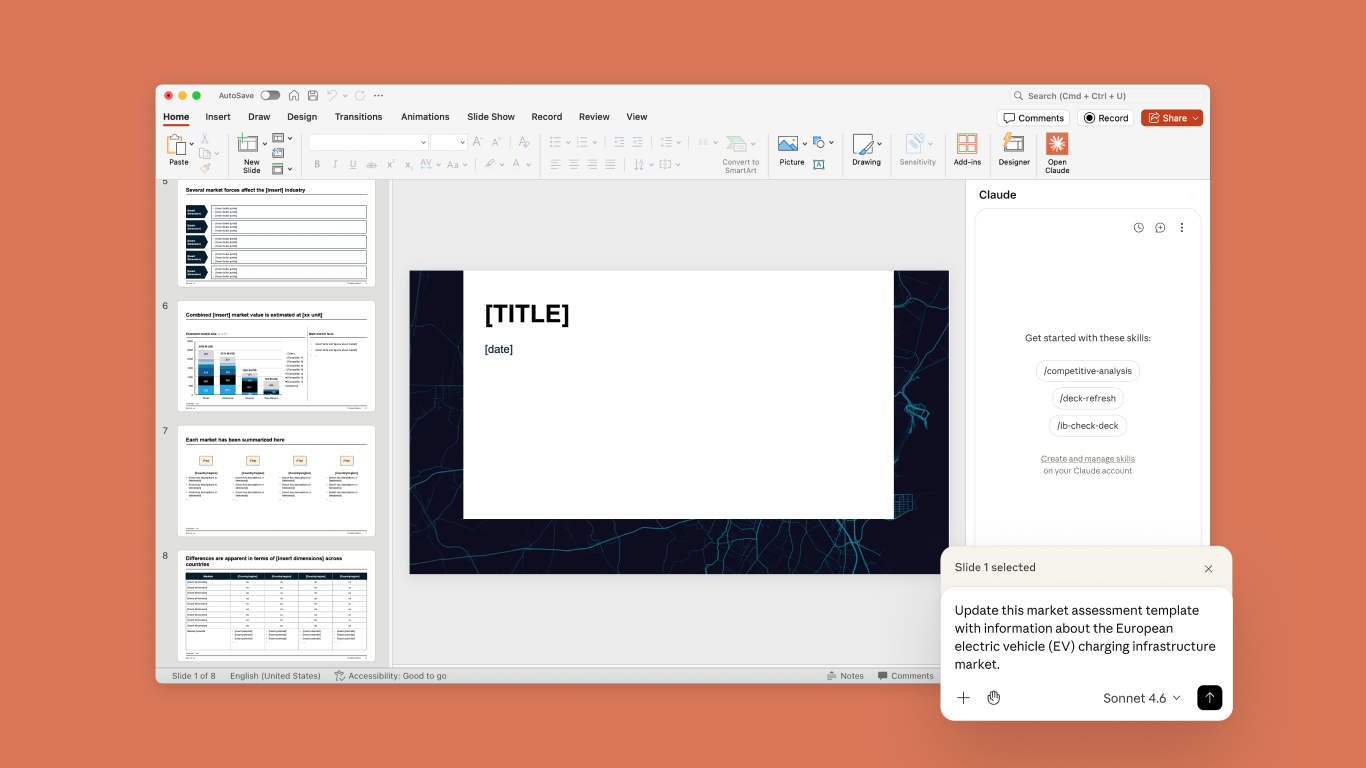
Anthropic also documents actions such as sorting and filtering data, editing PivotTables, configuring conditional formatting, and creating data-validation rules. Within Claude for Microsoft 365, supported sessions can share context across Excel, Word, PowerPoint, and Outlook.
2. ChatGPT for Excel vs Claude for Excel: Feature comparison
| Criteria | ChatGPT for Excel | Claude for Excel |
|---|---|---|
| Developer | OpenAI | Anthropic |
| Format | Microsoft Excel add-in running in a sidebar | Microsoft Excel add-in running in a sidebar |
| Spreadsheet tasks | Create and update workbooks, explain formulas, clean data, analyze multiple sheets, build scenarios | Create and update models, trace cells and formulas, troubleshoot errors, adjust assumptions across sheets |
| PivotTables and formatting | Works with various spreadsheet structures; test each advanced operation in your Excel version | Anthropic documents native actions including filtering, sorting, editing PivotTables, conditional formatting, and data validation |
| Data connections | Skills and approved apps depending on plan and administrator settings; Google Sheets via a separate integration | Connectors, Skills, and context-sharing across Word, PowerPoint, and Outlook add-ins |
| Access and plans | Free/Go: limited use; Plus/Pro and organizational plans: subject to their usage allowances or credits | Pro, Max, Team, and Enterprise; subject to account usage limits |
| Known limitations | Some advanced features such as VBA/macros may not be fully supported; verify outputs | Macro/VBA operations and Excel Data Tables are not supported; verify outputs |
| Who might start here | People already using ChatGPT, or wanting limited free access for reporting and data cleanup | Existing Claude users who work with multi-sheet models and Microsoft Office workflows |
Note: This comparison reflects vendor documentation and availability at the time of writing. It is not a performance ranking. Features, usage allowances, and Excel-version requirements may vary by plan and organizational policy.
3. Comparing everyday business tasks
Writing Excel formulas and troubleshooting calculations
Both ChatGPT and Claude can explain formulas, examine relationships between cells, and suggest fixes for errors such as #REF! or #DIV/0!. Claude emphasizes references back to the relevant cells in a workbook. ChatGPT can also help trace formulas and identify related cells while explaining calculations.
For accounting or budgeting spreadsheets, ask the assistant to identify the cause and location of each suspected error before applying changes. Review dependent cells rather than checking only the final number.
Cleaning data and preparing management reports
OpenAI presents ChatGPT for Excel as useful for standardizing categories, identifying duplicates, preparing tracking sheets, and creating budget or KPI reports. Claude can also work across multiple sheets, with documented native Excel operations such as sorting, filtering, and conditional formatting.
For example, a workbook with Sales, Expenses, and Customers sheets could be used to summarize monthly revenue, calculate growth, and prepare a brief management report. Clearly identify the source sheets, data range, and metric definitions so the AI does not make incorrect assumptions.
Financial modeling and scenario analysis
Both tools can help adjust assumptions and examine how changes affect calculated results. This is relevant to revenue forecasts, cash flow planning, departmental budgets, and staffing plans.
Anthropic describes maintaining formula dependencies while modifying assumptions; OpenAI describes building and updating models and constructing base, upside, and downside cases. Without an independent test, this article does not claim that one tool is consistently more accurate than the other.
Working with other applications and data sources
ChatGPT can access allowed data sources through apps and has separate experiences for Excel and Google Sheets. Depending on supported environments, Codex in the ChatGPT desktop app may also interact with an open Excel workbook.
Claude for Microsoft 365 is designed to help carry context between Excel, Word, PowerPoint, and Outlook. That could be useful when an analysis begins in a spreadsheet and ends in a document or presentation.
4. Are ChatGPT for Excel and Claude for Excel free?
ChatGPT for Excel: According to OpenAI’s documentation, access spans Free, Go, Plus, Pro, Business, Enterprise, Edu, and K–12 offerings, with limited usage on Free and Go and plan-specific usage allowances or credits for other tiers. Installing the add-in does not mean unlimited AI usage.
Claude for Excel: According to Anthropic’s current documentation, the add-in is available to users on supported paid plans including Pro, Max, Team, and Enterprise. Actual usage remains subject to the account’s limits.
Pricing and access conditions can change. Businesses should therefore compare total costs based on user counts, expected workload, deployment permissions, and current official pricing instead of assuming that one option is universally cheaper.
5. How to install ChatGPT for Excel and Claude for Excel
Install ChatGPT for Excel
- Open Microsoft Excel on the web or desktop and go to Home > Add-ins.
- Search for the ChatGPT add-in published by OpenAI, LLC, or visit the official ChatGPT Microsoft Marketplace listing.
- Select Get it now or Add, open the add-in, and sign in with the appropriate ChatGPT account.
- Open a copy of a sample workbook and ask the assistant to explain a formula or produce a report.
Install Claude for Excel
- Open Claude for Microsoft 365 on Microsoft Marketplace and verify that Anthropic is the publisher.
- Select Get it now and follow the steps to add it to Excel.
- Sign in with an eligible Claude account and open the workbook you want to work on.
- Try asking Claude to explain formulas, identify cell dependencies, or suggest fixes for inconsistent data.
For business environments, administrators may need to review Integrated apps, Office Store access, add-in deployment settings, and security policies if installation is blocked. Anthropic documents Excel version requirements for its add-in, including supported Microsoft 365 builds on Windows, supported Mac versions, and Excel for the web. Perpetual Excel 2016/2019 editions are not listed as supported for Claude for Excel.
6. Three prompts to test on the same Excel workbook
For a fair comparison, prepare two identical copies of a test workbook, run the same prompts, and manually verify the results. The following are suggested test scenarios, not benchmark results obtained by Vietbay.
Test 1: Summarize a sales report
“Read the Sales and Products sheets. Create a Summary sheet showing monthly revenue, revenue by product category, and the five largest customers. Preserve all source sheets, explain the formulas used, and flag missing data.”
What to check: whether revenue totals match the source data, formulas reference the correct cells, and missing values are flagged.
Test 2: Trace formula errors
“Inspect the Report sheet for #REF!, #DIV/0!, and unusual formulas. Before changing anything, list each affected cell, its likely cause, and dependent cells. Do not modify the source sheets.”
What to check: whether the assistant identifies errors correctly, explains their causes, and avoids overwriting data or formulas.
Test 3: Build three budget scenarios
“Using the Budget sheet, create Base, Optimistic, and Conservative scenarios with revenue growth of 5%, 12%, and -3% respectively. Preserve the original data and linked formulas, then create a table comparing budget variances.”
What to check: whether formulas recalculate when assumptions change, scenarios remain separate, and the original workbook can be restored.
Businesses can assess each scenario using four criteria: accuracy, preservation of data and formulas, quality of explanations, and the amount of manual correction needed. Response speed alone is not a sufficient measure of quality.
7. Data security when using AI in Excel
When you use ChatGPT or Claude inside Excel, the AI needs access to the workbook content relevant to your request. Relevant data may be processed by the service provider, and data retention, access controls, and enterprise settings differ across products and plans. An add-in running inside Excel does not automatically mean that all processing takes place locally on your computer.
Before using AI with financial statements, quotations, employee lists, customer details, or documents covered by a nondisclosure agreement, organizations should:
- Use only official add-ins and manage permissions through IT policies.
- Decide which data may be shared with AI, anonymizing or removing unnecessary sensitive information.
- Review provider terms for data processing, storage, administration, and auditability.
- Work on workbook copies, inspect modified cells, and verify formulas before accepting output.
- Remain alert to prompt injection in externally supplied spreadsheets, where embedded text may attempt to influence AI actions unexpectedly.
8. Which should you choose: ChatGPT for Excel or Claude for Excel?
If you already use ChatGPT and want to try Excel assistance through limited free access, clean data, create summary reports, or develop repeatable reporting workflows, ChatGPT for Excel is a practical option to evaluate.
If you routinely work with financial models spanning many sheets, need to trace cells and formula dependencies, want built-in Excel operations such as PivotTables and conditional formatting, or already use Claude with other Microsoft 365 applications, Claude for Excel is also worth testing.
Neither tool is universally better. For high-stakes spreadsheets, test both on identical sample data, verify their accuracy, and consider costs, product limitations, administrative controls, and data-protection requirements before broader deployment.
Conclusion
The choice between ChatGPT for Excel and Claude for Excel involves more than their underlying AI models. The tools differ in workflows, integrations, usage requirements, and data controls. Both may reduce repetitive spreadsheet work, but people remain responsible for validating calculations and approving changes.
Organizations deploying Microsoft 365 can contact Vietbay for guidance on their Office environment, add-in governance, and protecting business data when adopting AI-enabled workflows.
Related reading: How to check whether Microsoft Office is genuine and licensed; AI-powered Siemens NX automation with Claude and MCP.