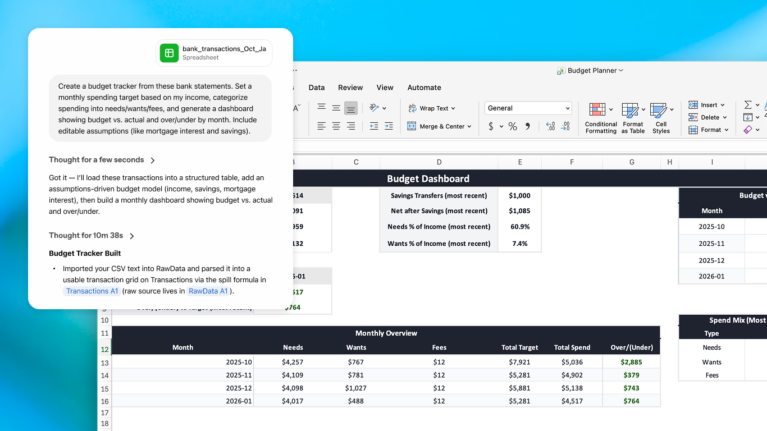

You do not need to master every Excel formula to use ChatGPT for data analysis, error detection, revenue summaries, trend analysis, and reporting. Instead of building every calculation or table manually, you can describe the task in plain language and then validate the output.
This guide explains how to use ChatGPT to analyze Excel data and create reports in two ways: upload a spreadsheet to ChatGPT for analysis or use the ChatGPT add-in directly inside Microsoft Excel. Vietbay also provides a downloadable sample sales workbook so you can follow the instructions and practice with ready-to-use prompts.
1. What can ChatGPT do with Excel files?
Depending on your account’s file-analysis capabilities, ChatGPT can work with .xlsx, .xls, and .csv files. Common use cases include:
- Detect missing values, duplicate entries, incorrect data types, and inconsistent labels.
- Explain Excel formulas such as
SUMIFSandXLOOKUPor troubleshoot errors like#REF!and#DIV/0!. - Analyze revenue by month, product category, region, or sales channel.
- Prepare KPI summaries, compare reporting periods, and highlight notable changes.
- Visualize data using bar, line, pie, or other suitable charts.
- Help generate a new Excel report or modify an existing workbook, subject to the environment and available features.
ChatGPT is an analytical assistant, not a guarantee of correct results. Figures used in management, financial, or accounting reports should always be checked against the underlying data.
2. Two ways to work with Excel using ChatGPT
| Criteria | ChatGPT on the web/app | ChatGPT for Excel |
|---|---|---|
| How it works | Upload an Excel file into a ChatGPT conversation | Install the ChatGPT add-in in Microsoft Excel |
| Best for | Data analysis, reports, charts, cross-checking totals, and requesting new files | Editing a workbook within Excel, checking formulas, and updating multiple sheets |
| Getting started | Attach a .xlsx, .xls, or .csv file to your chat | Home → Add-ins → ChatGPT by OpenAI |
| What to review | Summary tables, charts, exported files, and calculation methods | Modified cells, formulas, charts, and workbook structure |
| Points to consider | File-upload allowances and output options vary by account | Add-in usage limits, installation permissions, and some advanced Excel features may be restricted |
If you want to read a file, identify issues, and generate charts, start with a ChatGPT conversation. If your goal is to change formulas, formatting, or several worksheets while working in Excel, the ChatGPT for Excel add-in may be more convenient.
3. Method 1: Upload an Excel file to ChatGPT for data analysis
Step 1: Prepare a well-structured dataset
Arrange the data as a table with column headings in the first row, one record per row, and as few merged cells as possible. For example, a sales order file could contain Month, Order ID, Region, Sales Channel, Product Category, Quantity, Unit Price, Revenue, and Profit columns.
If you need accurate totals or reconciliation, upload a structured Excel or CSV file rather than a screenshot of a spreadsheet.
Step 2: Upload the workbook to ChatGPT
- Open ChatGPT and sign in.
- Start a new chat and attach your
.xlsxor.csvworkbook. - Ask ChatGPT to identify the worksheets, column names, row counts, and data-quality problems before doing any calculations.
- Specify the metrics, grouping rules, currency, reporting period, and required output format.
Try this first prompt:
Inspect the Excel file I uploaded. Tell me how many worksheets it contains, which columns appear on each sheet, the number of data rows, the number of missing cells, and whether any order IDs are duplicated. Do not edit anything yet; only report issues that need attention.
Step 3: Ask ChatGPT to build summaries and charts
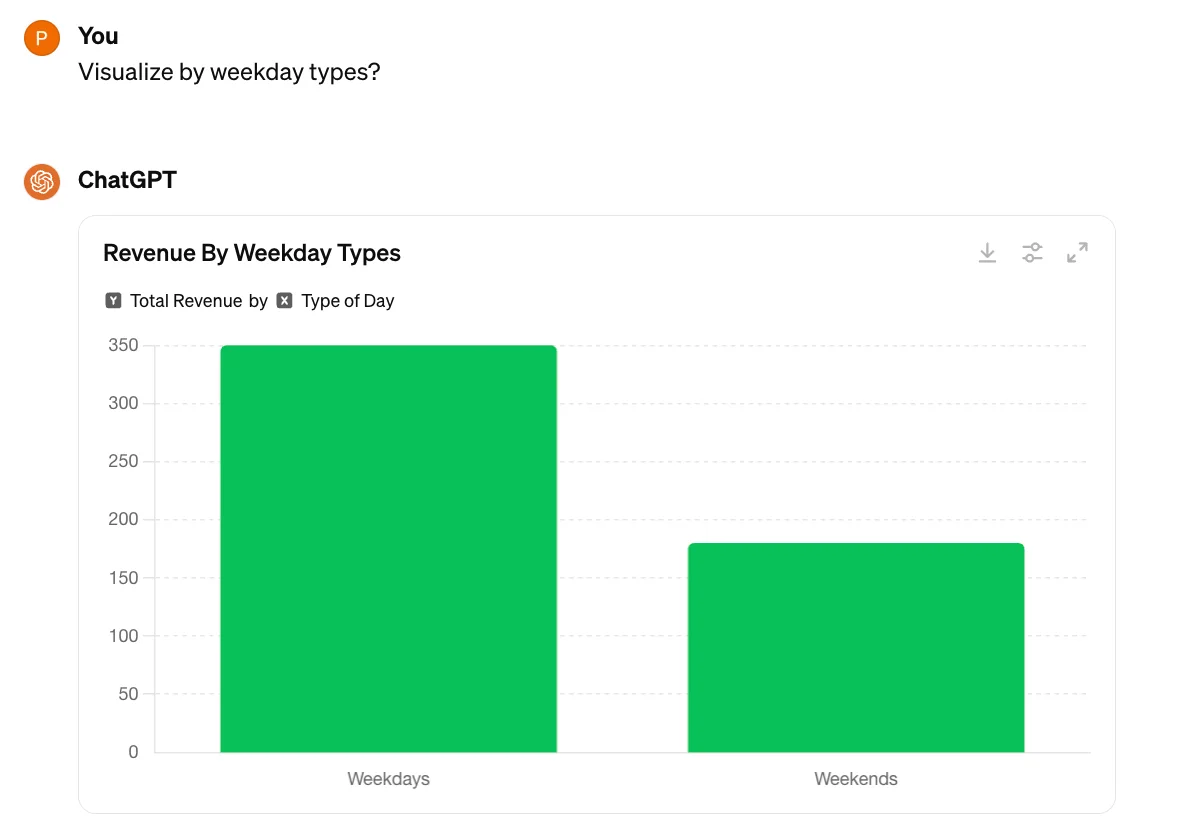
After confirming the structure, ask ChatGPT to calculate monthly sales, compare profit, summarize product categories, or report other KPIs. You can request a specific chart type or ask the assistant to suggest the most suitable visualization.
Analyze revenue and profit by month. Create a summary table and a monthly revenue bar chart, identify the months with the largest increases or decreases, and explain the calculation. Confirm that the sum of monthly revenue matches the total revenue in the source data.
Step 4: Request an exportable report
Once the results have been checked, you can ask ChatGPT to create a new Excel workbook containing summary and analysis sheets. File downloads, chart formats, and editing options depend on the features available in your account and session.
Using the verified results, create an Excel report with three worksheets: Overview, Monthly_Revenue, and By_Product. Preserve the source data in a separate sheet, use recalculating formulas where possible, format monetary amounts in VND, and add a chart if supported. Provide the final workbook as a downloadable file.
A data table exported from a Data Analysis view may be available as CSV. If you need multiple worksheets and working Excel formulas, explicitly request an .xlsx workbook and review the exported file after downloading it.
4. Method 2: Use ChatGPT directly inside Microsoft Excel
OpenAI offers a ChatGPT add-in for Microsoft Excel. Once installed, it appears in a sidebar and can help read or edit worksheets, explain formulas, and build reports within an open workbook.
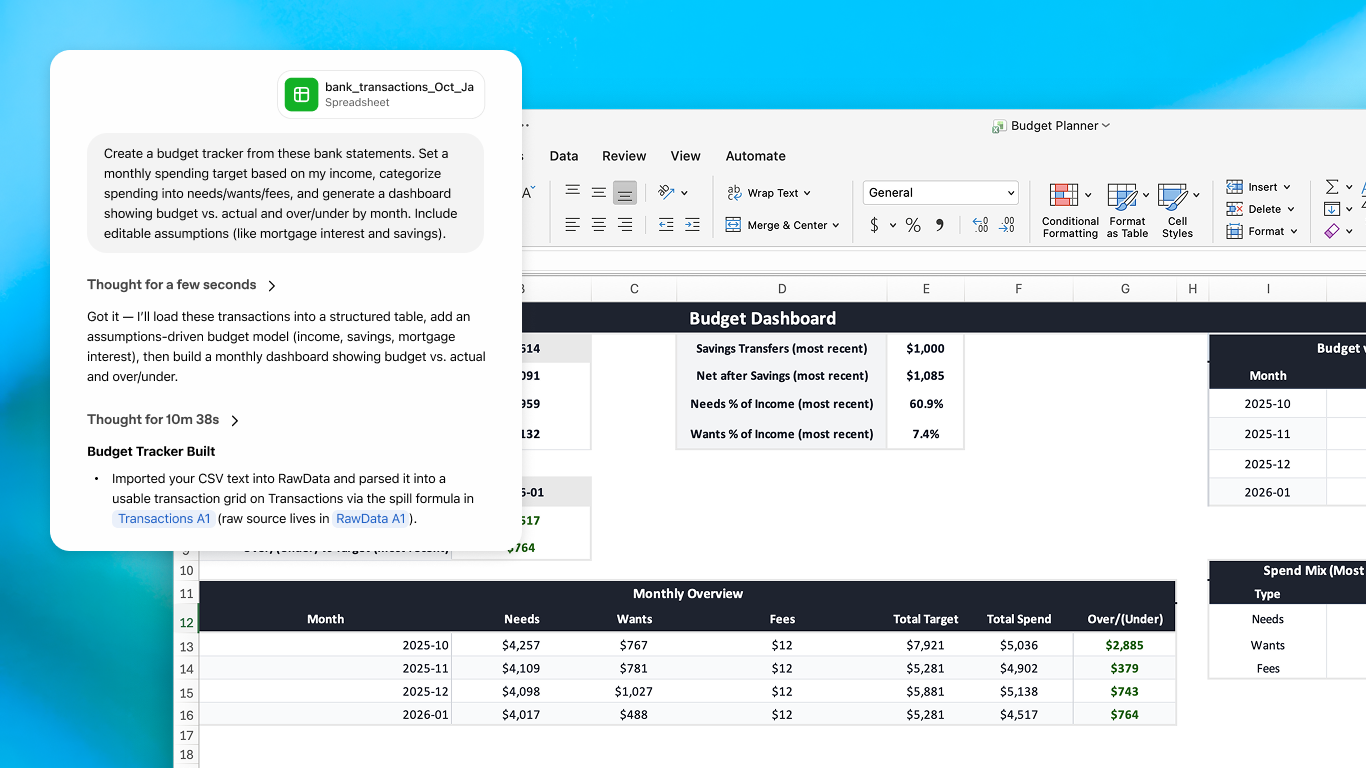
Install the ChatGPT for Excel add-in
- Open Excel on your desktop or in a web browser.
- Select Home > Add-ins and search for ChatGPT.
- Verify that the publisher is OpenAI, LLC. You can also visit the official ChatGPT listing on Microsoft Marketplace.
- Install the add-in, open its sidebar, and sign in with an eligible ChatGPT account.
- Try it on a copy of your workbook so you can inspect the changes before applying them to real data.
On company-managed devices, administrators may restrict add-in installation. IT can review Integrated apps in the Microsoft 365 admin center to manage deployment to approved users or groups.
Example: Edit a workbook without changing its original data
In the Du_lieu_ban_hang worksheet, first make a copy. Standardize product-category names, identify duplicate order IDs, and create a Bao_cao_moi worksheet summarizing monthly revenue. Do not alter the original worksheet. Before making any changes, list the sheets and cell ranges you plan to update.
After the add-in finishes, review modified cells, referenced formulas, and totals. According to OpenAI’s documentation, some advanced Excel features, including VBA/macros, may not be fully supported.
5. Practice with Vietbay’s sample Excel sales workbook
To make the tutorial easier to follow, Vietbay prepared a workbook simulating sales activity during the first six months of 2026. All names and numbers are fictional sample data and do not represent actual business performance.
Download the sample Excel workbook for ChatGPT analysis and reporting (.xlsx)
The workbook contains three sheets: Du_lieu_ban_hang (72 sample sales orders), Bao_cao_mau (KPI calculations and summary tables), and Huong_dan_prompts (seven sample prompts). The worksheet names are retained in Vietnamese so the following prompts match the downloadable file exactly.
Example KPIs from the fictional dataset
The sample workbook provides these reference figures for its 72 orders:
- Total revenue: 1,993,200,000 VND.
- Total profit: 494,200,000 VND.
- Number of orders: 72.
- Total units sold: 307.
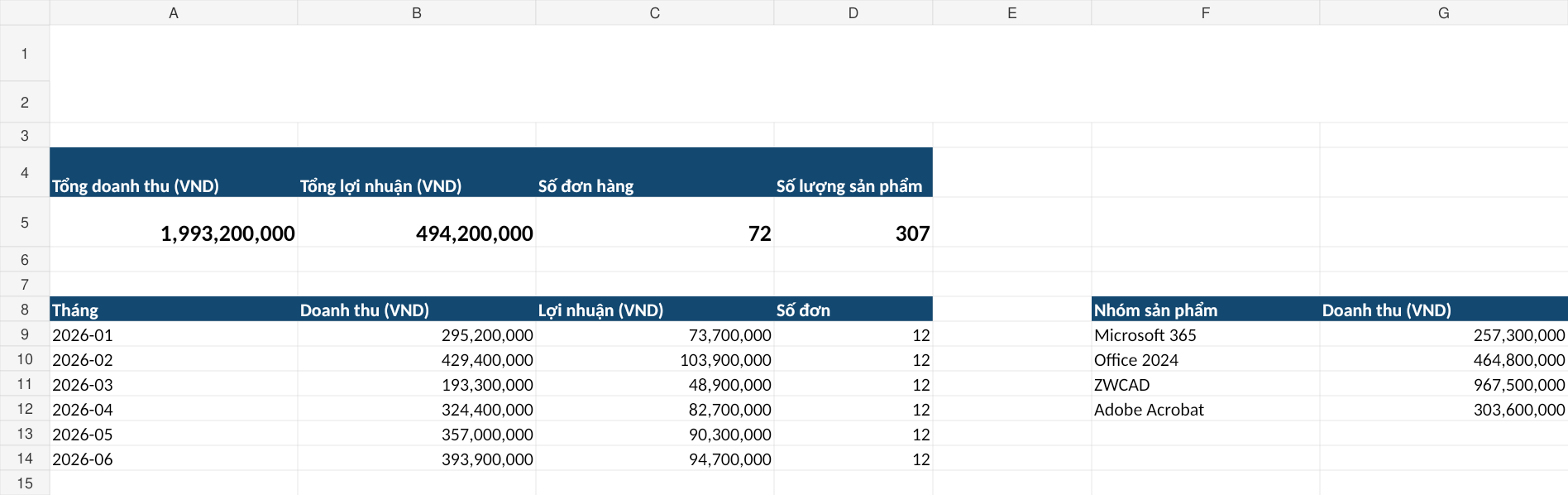
Upload the file to ChatGPT and ask it to recalculate these KPIs. If its totals differ from the sample report, request the exact rows, filters, source columns, and calculations that produced the discrepancy before proceeding.
6. Seven useful ChatGPT prompts for Excel reporting
Prompt 1: Audit data quality
Read the Du_lieu_ban_hang worksheet. Check for duplicate order IDs, blank cells, unusually negative amounts, and inconsistent data types. Return a table with the column, row, issue, and recommended action. Do not modify the file.
Prompt 2: Clean and standardize data
Recommend ways to standardize the Khu_vuc, Kenh, and Nhom_san_pham columns. Create a Du_lieu_da_chuan_hoa worksheet based on the original data, preserve the source worksheet, and list every change made.
Prompt 3: Analyze monthly revenue
Group records by the Thang column and calculate total Doanh_thu_VND, total Loi_nhuan_VND, and number of orders. Calculate month-over-month revenue changes. Verify that the sum of monthly revenue matches the grand total of the Doanh_thu_VND column.
Prompt 4: Build a KPI table and chart
Prepare a management KPI report showing total revenue, total profit, profit margin as a percentage of revenue, number of orders, and the top three product categories. Add a monthly revenue chart, label the currency as VND, and identify the source data. Base all commentary only on the available figures.
Prompt 5: Compare regions and sales channels
Compare revenue by Khu_vuc and Kenh. Identify the largest sales channel, calculate each channel’s share of total revenue, and flag any unusual data that needs review. Do not speculate about business causes if the workbook does not contain supporting evidence.
Prompt 6: Export a new Excel report
Create a new reporting workbook that preserves the original data and adds the worksheets Tong_quan, Theo_thang, and Theo_san_pham. Prefer formulas that recalculate when source values change; do not replace formulas with static numbers unless necessary.
Prompt 7: Validate the completed report
Reconcile every KPI against the source data and Excel formulas. Look for #REF!, #VALUE!, duplicate entries, missing records, and incorrect filters. If you find a discrepancy, provide a table showing the affected cell, formula, current result, and proposed correct value.
For better control, run these prompts one at a time. Check each result before moving to the next task, and ask ChatGPT to identify the precise data range used in its calculations.
7. Common mistakes when using ChatGPT for Excel reports
- Uploading data without clear headers or mixing several unrelated tables into the same worksheet.
- Failing to define revenue, profit, VAT, refunds, or canceled-order treatment.
- Requesting charts without specifying the reporting period or units.
- Trusting grand totals without reconciling the figures by category and reviewing formulas.
- Letting AI edit the source workbook without making a backup or previewing the proposed changes.
An effective prompt should define the source data, required metrics, expected report structure, and validation rules. Rather than writing “analyze this file,” specify the relevant sheet, reporting period, metrics, and reconciliation checks.
8. Protecting business data when uploading Excel files to ChatGPT
When you analyze an Excel file with ChatGPT, uploaded content or relevant workbook context may be processed to produce a response. The same principle applies to add-ins: running inside Excel does not necessarily mean that the data stays only on your device.
Businesses should begin with fictional or anonymized datasets and establish which information may be shared with AI services. Before working with payroll, account numbers, customer lists, quotations, or confidential documents, check your organization’s policies, the applicable service plan, and administrative permissions.
OpenAI provides enterprise workspace administration controls; add-in access and connected data sources may still depend on the plan and organization settings. Important reports should always be reviewed and approved by people before they are shared or used in decisions.
9. Frequently asked questions
Do I need Microsoft Excel installed to analyze a spreadsheet with ChatGPT?
Not necessarily. You can upload an Excel or CSV file to ChatGPT for analysis without opening Excel on your computer. To use the ChatGPT add-in directly inside a workbook, however, you need a compatible Excel environment and permission to install the add-in.
Can the free version of ChatGPT analyze Excel files?
Accounts with supported file-upload and analysis capabilities can work with spreadsheets, subject to plan-specific usage limits. ChatGPT for Excel also offers limited access on Free/Go plans. Additional features may depend on your organization’s settings or the Excel version.
Can ChatGPT create Excel formulas and new Excel files?
ChatGPT can suggest formulas, help build spreadsheets, and generate files when these capabilities are available. If you need a workbook with editable formulas, formatting, or charts, request an .xlsx file and review it after downloading.
Can I trust every number in a report created by ChatGPT?
No. Check revenue totals, filtering conditions, formulas, and reporting periods. You can use the sample Vietbay workbook above to practice validating KPIs before analyzing actual business data.
Conclusion
ChatGPT can reduce repetitive work when cleaning Excel data, analyzing revenue, creating charts, and preparing management reports. For reliable results, begin with well-structured data, write specific prompts, preserve the source workbook, and reconcile figures before using the output.
For a broader comparison of AI spreadsheet tools, read our article on ChatGPT for Excel vs Claude for Excel.
If your organization needs guidance on Microsoft 365, Office deployment, or controlling access to Excel add-ins, contact Vietbay.