
When signing in to Outlook, Word, Excel, Teams, or OneDrive with a Microsoft 365 account, you may see the message “Something went wrong – Your computer’s Trusted Platform Module has malfunctioned”, along with error code 80090016. In some cases, the message also says “Keyset does not exist”, and you cannot complete sign-in even though your password is correct.
This error involves authentication between Windows and Microsoft 365. It does not necessarily mean the computer’s physical TPM chip has failed. This guide explains how to troubleshoot Microsoft 365 error 80090016 on Windows 10 and Windows 11, starting with safer checks and clearly identifying the more advanced steps that should be handled by IT administrators.
1. What is Microsoft 365 error 80090016 – Trusted Platform Module Has Malfunctioned?
The Microsoft 365 sign-in screen may display:
Something went wrong
Your computer’s Trusted Platform Module has malfunctioned.
Error Code: 80090016
Server message: Keyset does not exist (in some cases).
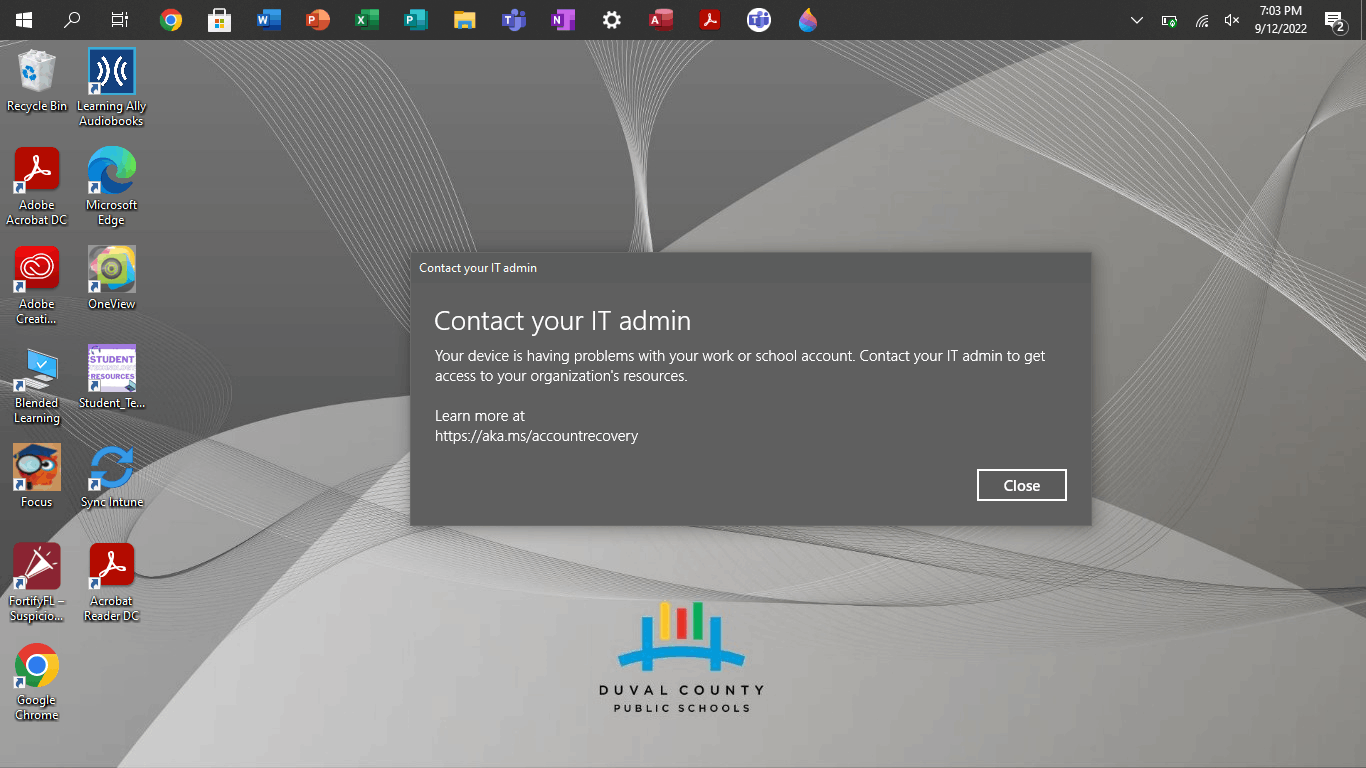
According to Microsoft Learn, error 80090016 corresponds to NTE_BAD_KEYSET and can be associated with the device’s TPM. The Trusted Platform Module (TPM) is a security component that protects cryptographic keys. Web Account Manager (WAM) is a Windows component that manages sign-in for Microsoft services.
When a key or locally stored credential cannot be accessed as expected, Microsoft 365 may fail to obtain an authentication token. The problem may affect several apps at once, or only one computer even though the same account works in a web browser.
2. Common causes of Microsoft 365 error 80090016
- Outdated or mismatched Office sign-in information: For example, after a password change, switching work accounts, or using multiple Microsoft 365 tenants.
- Problems with the WAM or Office authentication cache: Windows cannot access a previously saved identity or token.
- An issue involving TPM-protected keys: This can sometimes follow hardware changes, firmware updates, or changes to device security settings.
- A missing or malfunctioning Microsoft Entra WAM component: This can interrupt authentication in desktop applications.
These are possible causes to investigate, not a definitive diagnosis for every PC displaying 80090016. In particular, if only one application fails to sign in, you should not immediately assume that the physical TPM is defective.
3. How to fix Microsoft 365 error 80090016 on Windows 10/11
Method 1: Restart Windows and test Microsoft 365 sign-in on the web
- Save your work and completely close Word, Excel, Outlook, Teams, and OneDrive.
- Restart Windows.
- Open a Microsoft Edge InPrivate window by pressing Ctrl + Shift + N.
- Visit m365.cloud.microsoft and sign in with the same account that displays the error.
- Try signing in to the affected desktop application again.
If browser sign-in succeeds but Outlook or Word still shows error 80090016, the local Windows authentication state may need attention. If browser sign-in also fails, check the account, password, multifactor authentication (MFA), and license before changing your PC settings.
Method 2: Check TPM status with tpm.msc (do not clear the TPM)
- Press Windows + R.
- Enter
tpm.mscand press Enter. - In TPM Management on Local Computer, review the Status section.
If you see “The TPM is ready for use”, Windows recognizes the TPM as ready. However, this status does not completely rule out an authentication-key issue affecting Microsoft 365.
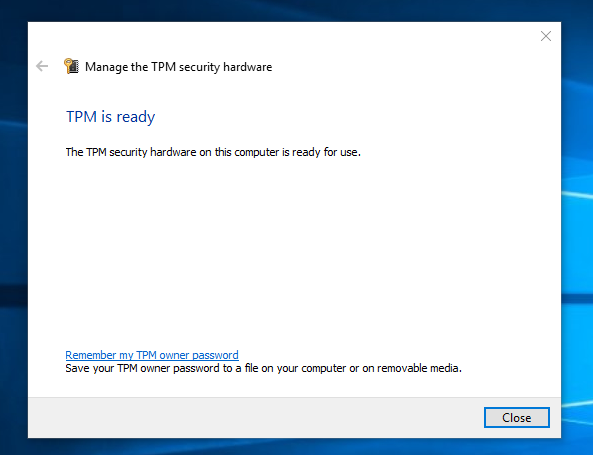
If Windows cannot detect the TPM or reports that it is not ready, record the message and ask IT to check the device driver, Windows updates, or firmware from the hardware manufacturer. Do not select Clear TPM as a troubleshooting experiment.
Method 3: Remove outdated Office credentials from Credential Manager
Microsoft has documented cases where removing old Office credentials helped resolve error 80090016. This is particularly relevant if several Microsoft 365 accounts have previously been used on the same Windows computer.
- Close all Microsoft 365 applications.
- Open Control Panel > Credential Manager > Windows Credentials.
- Under Generic Credentials, examine entries clearly associated with MicrosoftOffice, Office16, or the affected work account. The names may differ between devices.
- Select Remove only for entries you have positively identified as the Office credentials that need to be cleared.
- Restart the computer, open Word or Outlook, and sign in to your Microsoft 365 account again.
Note: Removing credentials may require you to sign in again to Office. Do not bulk-delete credentials used by Windows, VPN connections, Remote Desktop, file servers, or unrelated applications. If you are using a company PC and cannot identify the relevant credentials, consult IT.
Method 4: Run the Microsoft 365 Sign-in Troubleshooter
Microsoft provides a troubleshooter for common Microsoft 365 sign-in issues. This is worth trying before editing the Registry, deleting system folders, or changing TPM settings.
- Open the official guide: Authentication automatically fails in Microsoft 365 services – Microsoft Learn.
- Under Resolution, find the link for the Microsoft 365 Sign-in troubleshooter.
- If Windows prompts you to launch Get Help, allow it and follow the on-screen instructions.
- Restart the affected Microsoft 365 application and check whether sign-in works.
For an organization-managed computer, ask your IT administrator to continue if the troubleshooter requires administrative permissions.
Method 5: Check and repair the Microsoft Entra WAM Plugin (IT administrators)
If multiple desktop apps fail to sign in while browser access still works, an administrator may investigate Microsoft.AAD.BrokerPlugin, a WAM component used with work or school accounts.
- Sign in to Windows using the affected user’s Windows profile.
- Open PowerShell and check whether the plugin is installed:
Get-AppxPackage Microsoft.AAD.BrokerPluginIf the package cannot be found in that user’s profile, Microsoft documents how to re-register it from its Windows system folder:
if (-not (Get-AppxPackage Microsoft.AAD.BrokerPlugin)) {
    Add-AppxPackage -Register "$env:windir\SystemApps\Microsoft.AAD.BrokerPlugin_cw5n1h2txyewy\Appxmanifest.xml" -DisableDevelopmentMode -ForceApplicationShutdown
}
Get-AppxPackage Microsoft.AAD.BrokerPlugin
The commands follow the guidance in Microsoft Learn. If the plugin is already present but errors continue, do not manually delete Appx folders, change system permissions, or remove the Windows user profile. IT should instead inspect WAM logs, device configuration, and security software.
Method 6: Reset Microsoft 365 Apps activation information (IT administrators)
When the issue involves outdated Office sign-in and activation information, Microsoft provides a process for resetting the activation state of Microsoft 365 Apps for enterprise.
- Close Microsoft 365 applications and verify that the account has an appropriate license.
- Open Reset activation state for Microsoft 365 Apps for enterprise.
- Start with the Microsoft 365 activation troubleshooter in Get Help, as described by Microsoft.
- If it is necessary to clear older Office authentication tokens on a managed PC, IT can use Microsoft’s OLicenseCleanup.vbs and signoutofwamaccounts.ps1 tools referenced in that guide.
- Restart the computer and sign in with the account that has the correct license assignment.
Important: Activation cleanup can require users to sign in to Office again. On Microsoft Entra-joined, hybrid-joined, or Intune-managed devices, do not casually disconnect Access work or school, remove device registration, or run dsregcmd /leave. Those actions can disrupt device management, single sign-on, and access to company resources.
4. Should you clear the TPM to fix error 80090016?
Do not treat Clear TPM as a first-line fix. Windows also uses the TPM to protect encryption keys, Windows Hello PINs, and other security features. Microsoft warns that clearing the TPM can require Windows Hello to be set up again and may cause loss of access to protected data unless a recovery procedure is available.
On devices using BitLocker or Device Encryption, confirm that the recovery key is backed up and accessible before any significant TPM changes. On company-owned computers, only IT should decide whether a firmware update or TPM reset is appropriate under organizational policy.
If an online guide tells you to delete the Ngc folder, remove the entire AAD.BrokerPlugin folder, disable TPM in the BIOS, or edit the Registry without explaining backup and recovery requirements, do not follow it blindly.
5. Frequently asked questions about error 80090016
What if TPM says “The TPM is ready for use” but Office still shows 80090016?
A ready TPM does not guarantee that cached Office tokens and authentication keys are valid. Check browser sign-in, Credential Manager, the Microsoft 365 Sign-in Troubleshooter, and WAM before considering any TPM-related changes.
Does 80090016 mean my password is wrong or my Microsoft 365 subscription has expired?
Not necessarily. Error 80090016 relates to a keyset/TPM issue during authentication. Nevertheless, testing browser sign-in and verifying license entitlement can help rule out an unrelated account or subscription issue.
Will uninstalling and reinstalling Office definitely fix error 80090016?
No. WAM and TPM are Windows components, so reinstalling Office may leave the underlying authentication problem unchanged. Start with account checks, Credential Manager, and Microsoft’s official troubleshooting tools.
Can this error also affect Outlook, Teams, and OneDrive?
Yes. Microsoft 365 apps on Windows use shared authentication components, so a WAM or sign-in key issue can potentially affect several applications. The exact impact depends on the account and device configuration.
Conclusion
Microsoft 365 error 80090016 – Trusted Platform Module Has Malfunctioned does not necessarily mean that the TPM hardware is broken. Check web sign-in and TPM status, remove only the relevant outdated Office credentials, and run Microsoft’s troubleshooters before having IT investigate WAM or the Office activation state. Do not clear the TPM merely to test whether sign-in starts working.
For help with licensed Microsoft 365 deployment and administration for businesses, contact Vietbay.
Related articles: How to fix OneDrive error 0x8004dec5 when using multiple Microsoft 365 accounts and How to check whether Microsoft Office is genuine and licensed.