
Do you use multiple Microsoft 365 accounts on the same Windows computer, such as your current work account, a former employer’s account, or a personal Microsoft account? Sometimes OneDrive for Business fails to sign in and displays error code 0x8004dec5. The problem may not be your password: it can be caused by previously saved sign-in information on the computer.
Microsoft identifies OneDrive error 0x8004dec5 as a sign-in problem commonly associated with multiple cached account identities. This guide explains how to diagnose and fix the issue on Windows 10 and Windows 11, starting with the simplest, least disruptive checks.
1. What is OneDrive error 0x8004dec5?
When signing in to the OneDrive sync app with a work or school account, you may see this message:
Error Code: 0x8004dec5
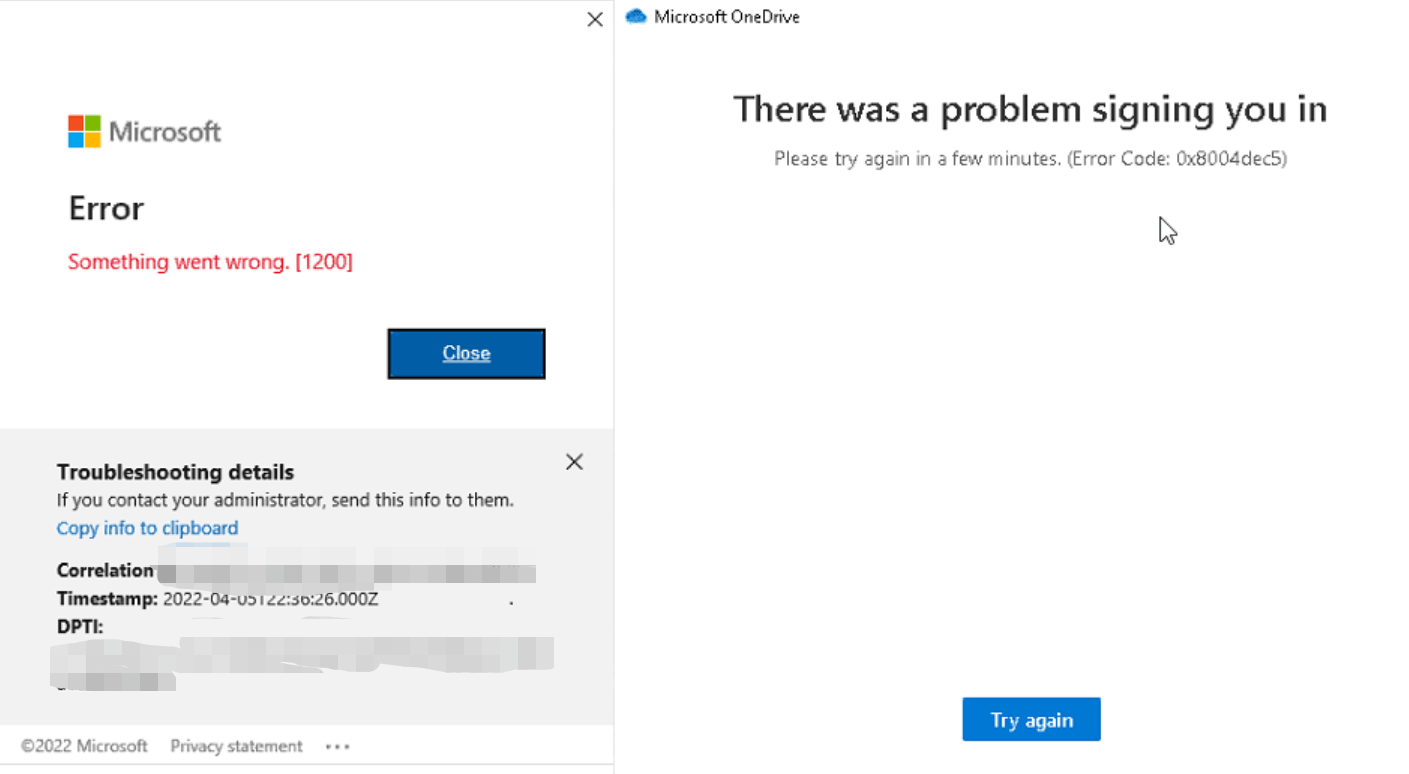
The app may fail to complete sign-in even when the email address and password are correct. This can occur after you have used different work accounts, changed organizations, or moved to another Microsoft 365 tenant. However, using multiple accounts does not automatically cause the error.
2. Why can multiple Microsoft 365 accounts cause sign-in conflicts?
Microsoft 365 saves account identities and authentication information so that you do not need to enter your credentials every time. On Windows, this information may be stored in Office identity components, the OneAuth and IdentityCache folders, and Windows Registry entries. If these saved identities no longer match the account you are trying to use, OneDrive may encounter an authentication error.
For example, you may have used userA@companyA.com before switching to userB@companyB.com, while OneDrive still refers to the old identity. This is an illustrative scenario, not a diagnosis of every occurrence of error 0x8004dec5.
3. How to fix OneDrive error 0x8004dec5 on Windows
Method 1: Verify your account in a private browser window
- Open Microsoft Edge in an InPrivate window by pressing Ctrl + Shift + N.
- Go to microsoft365.com and sign in with the work or school account that is failing in OneDrive.
- Open OneDrive from Microsoft 365 and check whether you can access your files.
If sign-in works in the browser but the Windows OneDrive app still reports an error, continue with the steps below. If the web sign-in also fails, ask your IT administrator to check your account, license, multifactor authentication (MFA), and access permissions before clearing any local sign-in data.
Method 2: Unlink the affected OneDrive account and sign in again
- Select the OneDrive cloud icon in the notification area of the Windows taskbar.
- Choose Help & Settings > Settings.
- On the Account tab, locate the affected account and choose Unlink this PC for that account.
- Restart OneDrive and sign in again with the Microsoft 365 account you want to use.
Data safety: Unlinking generally does not delete files stored in OneDrive online, but online-only files may need to be accessed through the web or synced again after reconnecting. Verify that recent changes have synced and back up important unsynced files before proceeding. Do not manually delete your OneDrive working folders.
Method 3: Remove old Office identities from the Registry (IT administrators)
If the problem persists, Microsoft documents steps to remove stored Office account identities. Editing the Windows Registry can affect other applications, so perform these steps only if you are experienced or working with your IT team, especially on devices managed through Microsoft Entra ID or Intune.
- Close OneDrive, Word, Excel, Outlook, Teams, and other Microsoft 365 apps.
- Press Windows + R, enter
regedit, and press Enter. - Navigate to the following Registry key:
HKEY_CURRENT_USER\SOFTWARE\Microsoft\Office\16.0\Common\Identity
- Right-click Identity and select Export to back up the key as a
.regfile. - After making the backup, right-click Identity and select Delete as described in Microsoft’s guidance.
- Restart Windows, then open OneDrive and sign in with the correct account.
Warning: This action may require you to sign in again to Office and other Microsoft 365 applications. Do not delete unrelated Registry keys. Microsoft also provides additional guidance involving HKEY_USERS for Shared Computer Activation environments; administrators should review the official documentation before making changes.
Method 4: Clear cached OneAuth and IdentityCache information
If OneDrive still cannot sign in after addressing the Registry entries, Microsoft’s troubleshooting instructions also describe removing stored account-identity cache folders:
- Sign out of and completely close OneDrive and other Microsoft 365 apps.
- Press Windows + R, enter each path below separately, and press Enter:
%localappdata%\Microsoft\OneAuth
%localappdata%\Microsoft\IdentityCache
- With assistance from your IT team, remove the cached identity folders according to Microsoft’s instructions. Do not delete your OneDrive sync folders or personal documents.
- Restart the computer and sign in to OneDrive with the intended work account.
Clearing these folders can also affect the sign-in state of other apps that share Microsoft’s authentication system. On a company-managed device, coordinate this step with IT.
Method 5: Check Windows Credential Manager if the issue continues
Microsoft’s Microsoft 365 activation troubleshooting guidance also discusses removing outdated Office credentials saved in Credential Manager:
- Open Control Panel > Credential Manager > Windows Credentials.
- Ask your IT administrator to identify saved Office credentials or credentials for an account you no longer use.
- Remove only the entries that have been verified as relevant, then sign in again.
Do not bulk-delete unrelated credentials used for Windows, VPNs, file servers, or other applications.
4. How to avoid Microsoft 365 sign-in conflicts when using multiple accounts
- Distinguish personal and work accounts: choose the appropriate account type when Microsoft displays a sign-in prompt.
- Use separate browser profiles: a dedicated Microsoft Edge profile for each organization or tenant can help reduce accidental sign-ins to the wrong web account.
- Review your OneDrive sync accounts: keep only the accounts you still need, and unlink unused accounts after verifying that your files are safe.
- Do not disconnect device management on your own: the Settings > Accounts > Access work or school screen may control device registration, security policies, or Intune enrollment. Consult IT before changing it.
OneDrive supports multiple work or school accounts on a device. The issue discussed here concerns outdated or mismatched cached sign-in identities; it does not mean that Microsoft 365 prohibits multiple accounts.
5. Frequently asked questions
Will deleting OneAuth or IdentityCache remove my OneDrive files?
Those locations store authentication information rather than the files in your OneDrive sync folder. However, applications may ask you to sign in again and OneDrive may need to sync again. Check sync status, back up local unsynced changes, and never delete your OneDrive data folders as part of these steps.
What if I can sign in on the web but OneDrive shows error 0x8004dec5 on my PC?
This suggests checking the local sign-in session and cached account identities on Windows. Start by unlinking and reconnecting the affected OneDrive account. Only proceed to Registry and authentication-cache troubleshooting if simpler steps do not resolve the issue.
Should I uninstall Microsoft 365 to fix error 0x8004dec5?
Reinstalling Microsoft 365 is usually unnecessary as a first step. Because error 0x8004dec5 concerns authentication, check the account and previously saved credentials first.
Conclusion
OneDrive error 0x8004dec5 is often associated with multiple account identities cached on the computer. Verify that web sign-in works, review the affected OneDrive account, and try reconnecting before changing Registry keys or clearing OneAuth and IdentityCache. Use additional caution on company-managed Windows PCs.
For advice on Microsoft 365 licensing and deployment, contact Vietbay or the Vietbay IT Team – Hotline: 091 929 5529.
Official Microsoft resources:
- Error 0x8004dec5 when signing in to OneDrive – Microsoft Learn
- Unlink and re-link OneDrive – Microsoft Support
- Reset activation state for Microsoft 365 Apps – Microsoft Learn
Vietnamese version: Lỗi OneDrive 0x8004dec5 khi đăng nhập nhiều tài khoản Microsoft 365: Cách khắc phục