
Are you trying to install Microsoft 365 or Microsoft Office on Windows, only to see a “Something went wrong” message with error code 30068 or 30068-4 (1058)? These errors can interrupt Office installation. One important thing to check is whether the Microsoft Office Click-to-Run service has been disabled in Windows.
In this guide, Vietbay explains how to troubleshoot Office installation error 30068 on Windows 10 and Windows 11, starting with simple fixes before moving on to more advanced troubleshooting.
1. What is Microsoft Office installation error 30068?
When installing Microsoft 365, Office 2024, Office 2021, or another version that uses Click-to-Run technology, the installer may stop and display an error code containing 30068. Some messages include additional numbers separated by hyphens or shown in parentheses, such as 30068-4 (1058).
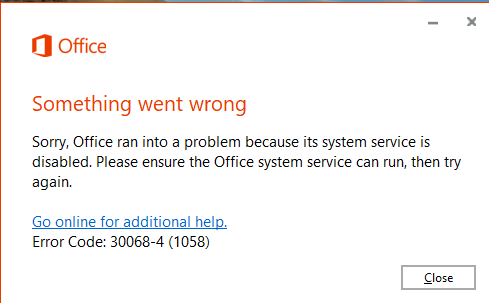
This error does not necessarily mean that your Microsoft 365 subscription has expired or that your product key is invalid. Microsoft recommends restarting your computer, checking the Click-to-Run service, and using an official Office uninstall tool if the initial steps do not resolve the issue.
Important: Not every error code containing 30068 has the same cause. A disabled Click-to-Run service is an important possibility, especially for 30068-4 (1058), but should not be assumed to be the cause in every case.
2. What causes Office installation error 30068?
Some situations worth checking include:
- Microsoft Office Click-to-Run service is disabled: The installer cannot use a service required to deploy Office.
- An earlier installation or update did not finish: Restarting the PC and running the installer again can help rule out a temporary installation state.
- An existing Office installation is damaged or contains old components: If simpler troubleshooting fails, you may need to uninstall the existing Office installation using Microsoft’s official tool and then reinstall it.
These are possible troubleshooting paths, not a confirmed diagnosis for every computer. Make a note of the complete error code before making any changes.
3. How to fix Office error 30068 on Windows 10 and Windows 11
Method 1: Restart Windows and run the Office installer again
- Close the Office installation window displaying the error.
- Save any open Word, Excel, or PowerPoint documents, then restart your computer.
- Sign back in to Windows and run the official installer that matches your Office license.
For Microsoft 365 plans that include desktop applications, sign in at m365.cloud.microsoft/apps to access the installation option provided with your account. For Office LTSC and enterprise deployments, your IT department should use the organization’s approved installer and deployment configuration rather than substituting a consumer Microsoft 365 installer.
If error 30068 still appears, continue to Method 2.
Method 2: Check the Microsoft Office Click-to-Run service
This is a key troubleshooting step documented by Microsoft when error 30068 is associated with a disabled installation service.
- Press Windows + R to open the Run dialog.
- Type
services.mscand press Enter. - In the Services window, locate Microsoft Office Click-to-Run Service.
- If its Startup type is set to Disabled, double-click the service or right-click it and choose Properties.
- On the General tab, change Startup type to Manual or Automatic, then select Apply > OK.
- Close Services and try installing Office again.
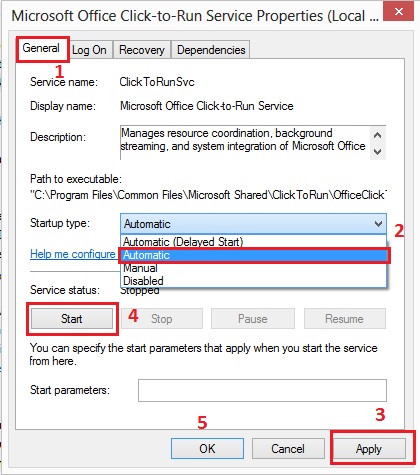
Important: If the Startup type is already something other than Disabled, Microsoft recommends moving on to further troubleshooting instead of changing unrelated Windows services. If the setting is locked or you receive an Access is denied message, contact your administrator. Do not attempt to bypass your organization’s device policies.
Method 3: Uninstall the existing Office installation using Microsoft’s official tool
If restarting Windows and checking Click-to-Run does not help, you may be able to use Microsoft’s official Microsoft 365/Office uninstall troubleshooter.
- Back up important files and check locally stored data, particularly Outlook PST files, customized Office templates, and documents that have not finished syncing. Make a note of your Office license or sign-in account.
- Visit Uninstall Microsoft 365 or Office from a PC – Microsoft Support.
- Find the Uninstall Microsoft 365 or Office with the uninstall troubleshooter section and start the tool according to Microsoft’s instructions. On some Windows systems, this process opens in Get Help.
- Follow the on-screen instructions and restart Windows if prompted.
- Reinstall the correct Office version for your account or license.
Note for Office 2024: According to Microsoft’s published guidance, the automated uninstall troubleshooter described above does not currently uninstall Office 2024. If you use Office 2024 or a company-managed Office LTSC installation, follow the version-specific removal instructions or consult IT before proceeding.
4. Special considerations for business PCs using Microsoft 365 or Office LTSC
Business computers may have Office installed through the Office Deployment Tool (ODT), Microsoft Intune, or another centralized management system. Before uninstalling Office on these devices, identify the exact product in use, such as Microsoft 365 Apps or Office LTSC 2024.
To help IT troubleshoot the problem, provide the full error code, a screenshot of the message, the Office version, when the installation failed, and the status of Microsoft Office Click-to-Run Service in Services.
Do not manually delete folders under Program Files, remove Click-to-Run service files, or delete Registry keys in an attempt to “clean” Office. Doing so may make it harder to repair or reinstall the applications.
5. Frequently asked questions about Office error 30068
Is Office error 30068-4 (1058) caused by a disabled Click-to-Run service?
That is one possibility worth checking. Open services.msc and inspect the Startup type for Microsoft Office Click-to-Run Service. If it is Disabled, change it to Manual or Automatic as described in Microsoft’s instructions, then retry the installation.
What if Click-to-Run is enabled but Office still will not install?
Restart Windows, confirm that you are using the installer appropriate for your Office license, and consider Microsoft’s official uninstall troubleshooter if it supports your Office version. On managed PCs, IT should review deployment policies and installation logs.
Will uninstalling Office delete my Word and Excel documents?
Uninstalling the Office applications is not intended to delete documents you created. However, you should still back up important files, locally stored Outlook data, and any unsynced changes before proceeding.
Should I download an Office 30068 repair tool from a third-party website?
No. Prefer Microsoft Support, official Microsoft installers, or deployment packages provided by your IT department. Avoid unknown repair utilities that ask you to disable security protections or make unverified Registry changes.
Conclusion
For Office installation error 30068, especially 30068-4 (1058), start by restarting your computer and checking Microsoft Office Click-to-Run Service. Only consider uninstalling and reinstalling Office if these steps fail. On business computers, work with IT to avoid disrupting device management and licensing configurations.
For assistance with Microsoft 365, Office licensing, and enterprise software deployment, contact Vietbay.
Related article: How to fix OneDrive error 0x8004dec5 when using multiple Microsoft 365 accounts.