
The Microsoft 365 features recently highlighted by Microsoft focus on familiar tasks such as importing data, editing slides, drafting documents, and scheduling meetings. Knowing how to use the right features can help employees reduce repetitive work in their daily routines.
In its September 3, 2026 roundup, Microsoft selected seven improvements worth trying across its applications. Here are the key highlights, along with practical suggestions for using them in a business environment.

1. Import data into Excel using functions
Excel’s new import functions, including IMPORTTEXT and IMPORTCSV, let users bring text data into a spreadsheet using formulas. The data can be loaded as refreshable dynamic arrays, making workflows within the worksheet more flexible.
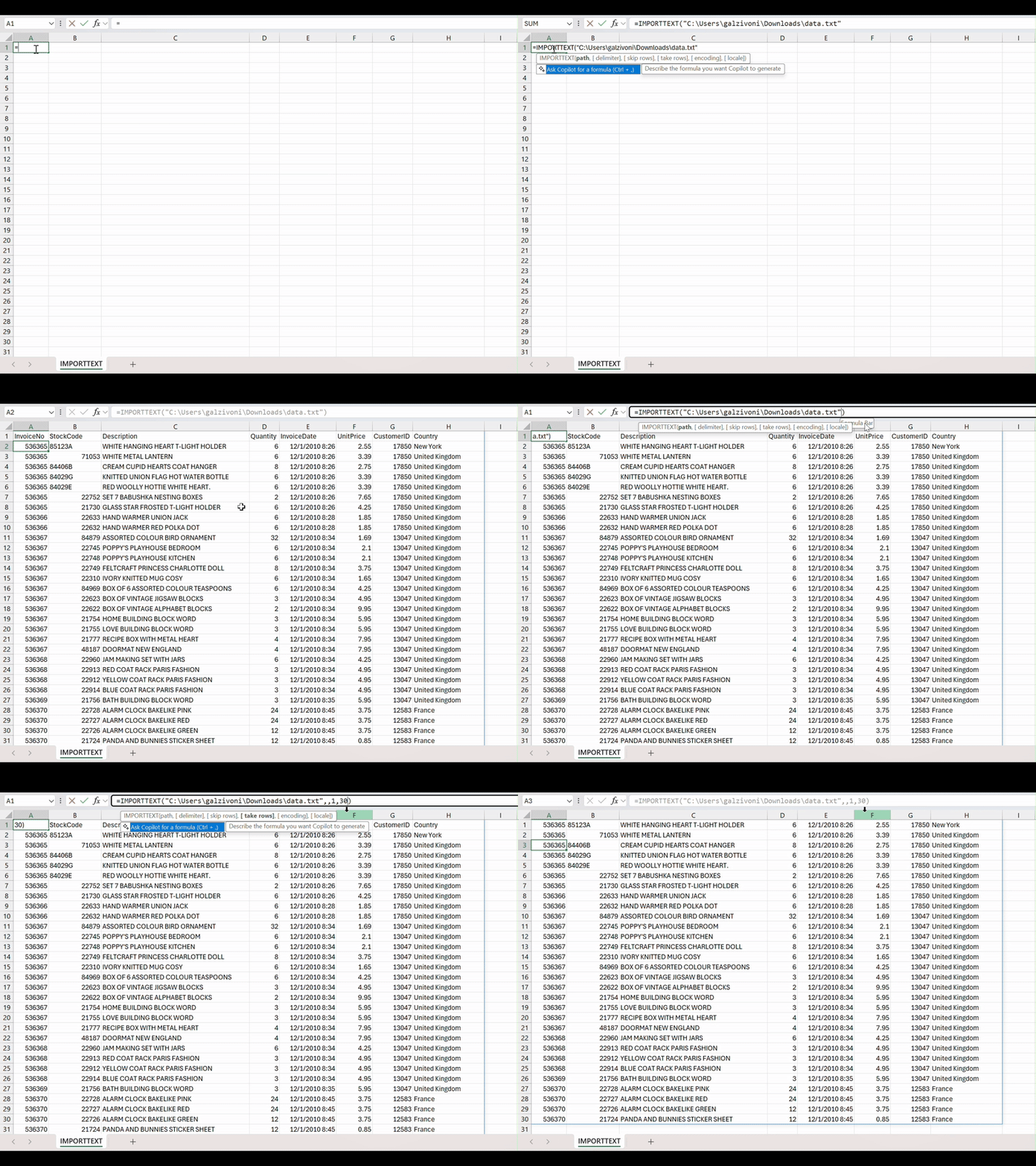
For employees who regularly receive CSV files exported from sales systems or management software, these functions offer an approach worth trying when preparing reports. Before using them, check delimiters, date formats, and codes with leading zeros to avoid data errors.
2. Edit images directly in PowerPoint
PowerPoint now offers an image editing experience within the application, with options to remove backgrounds, erase unwanted objects, enhance images, and increase resolution. Users can refine visuals while putting the finishing touches on their slides.
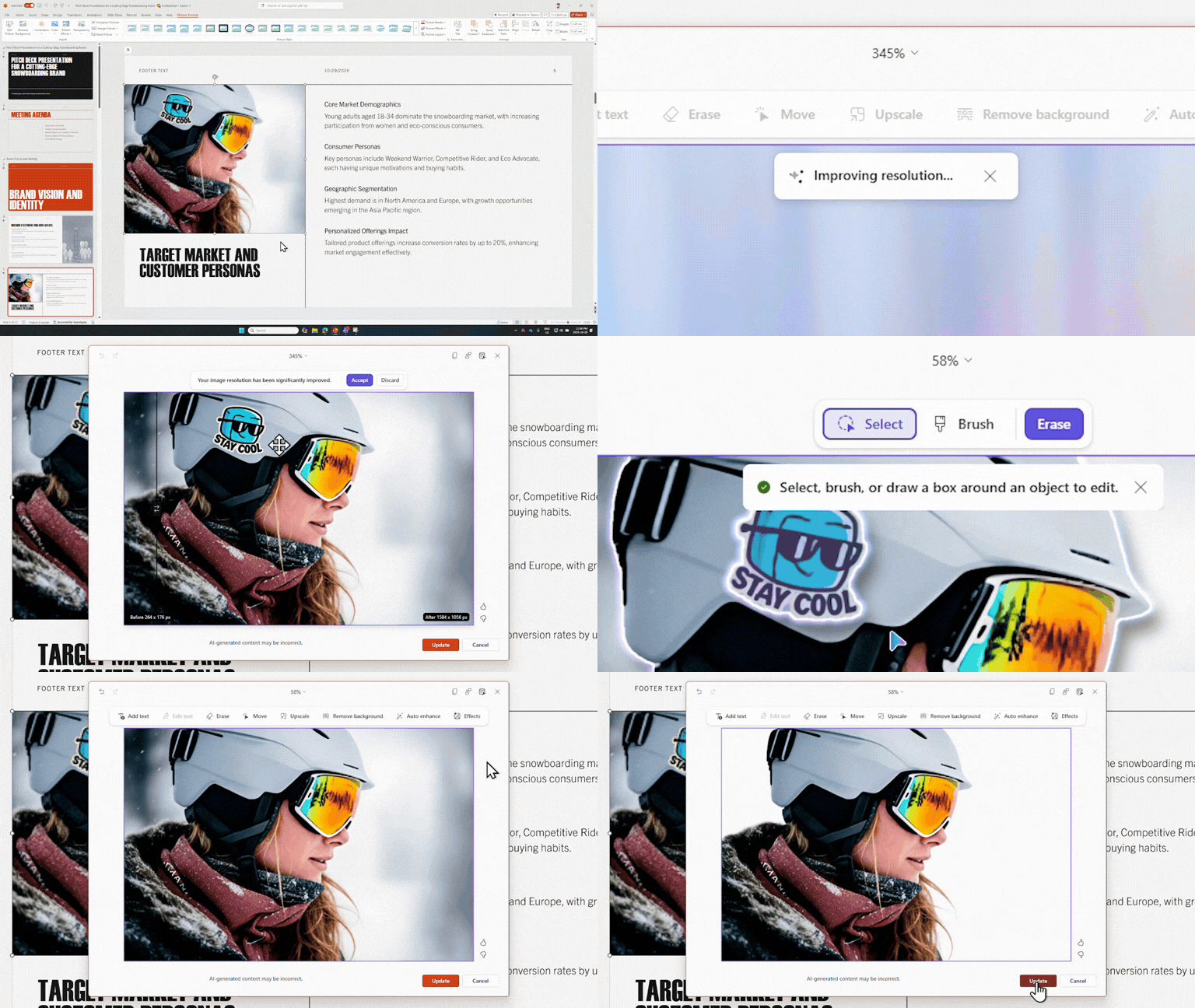
When preparing product presentations or training materials, sales and marketing teams can try these tools for basic edits. For product images, check the shape, colors, and any displayed specifications after editing to ensure the visuals accurately represent the product.
3. Create and edit math equations more easily and accessibly
Microsoft has improved how users enter, edit, and read equations in Microsoft 365 applications. The updates include support for keyboard shortcuts, audio feedback, and screen readers, making mathematical content easier to work with.
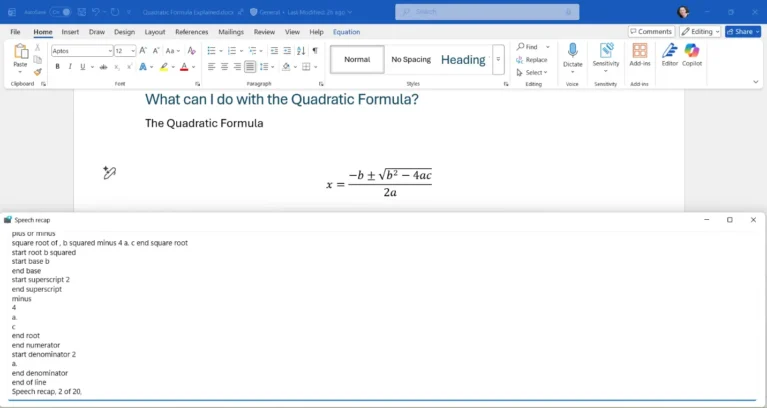
These improvements are useful for technical documentation and training materials. When adding formulas, businesses should use editable equation objects in their documents. This makes the content easier to update and supports readers who use assistive technology.
4. Test your microphone and speakers before joining a Teams meeting
The Test mic and speaker feature lets users check their audio devices on the Microsoft Teams pre-join screen. They can confirm that their speakers play sound and their microphone is working before entering the meeting.
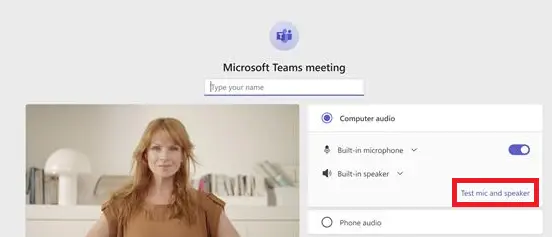
This is especially useful after switching headsets, connecting a computer to meeting room equipment, or working from a different location. Taking a few minutes to check audio before a meeting can reduce interruptions caused by troubleshooting sound during a presentation.
5. Let Copilot help resolve scheduling conflicts in Outlook
Copilot in the new Outlook for Windows and Outlook on the web can help reschedule personal appointments or one-on-one meetings when they conflict with a higher-priority event. Users define the conditions under which events can be rescheduled, rather than handing over their entire calendar to AI by default.
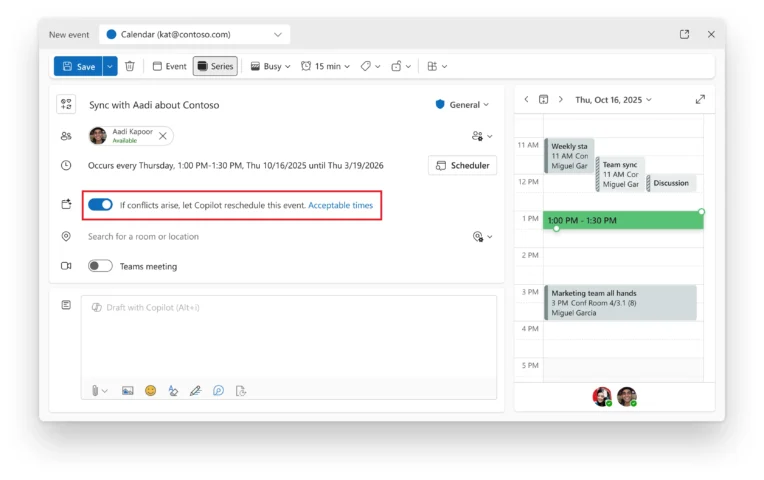
People with busy schedules should start with flexible appointments and monitor notifications about any changes. This feature requires an appropriate Microsoft 365 Copilot license, and availability depends on whether it has been rolled out to the account.
6. Add links to text faster in Word
Word lets users add a hyperlink by selecting a word or phrase and pasting a copied URL over it. The selected text becomes a link, speeding up the process of adding hyperlinks on supported versions.
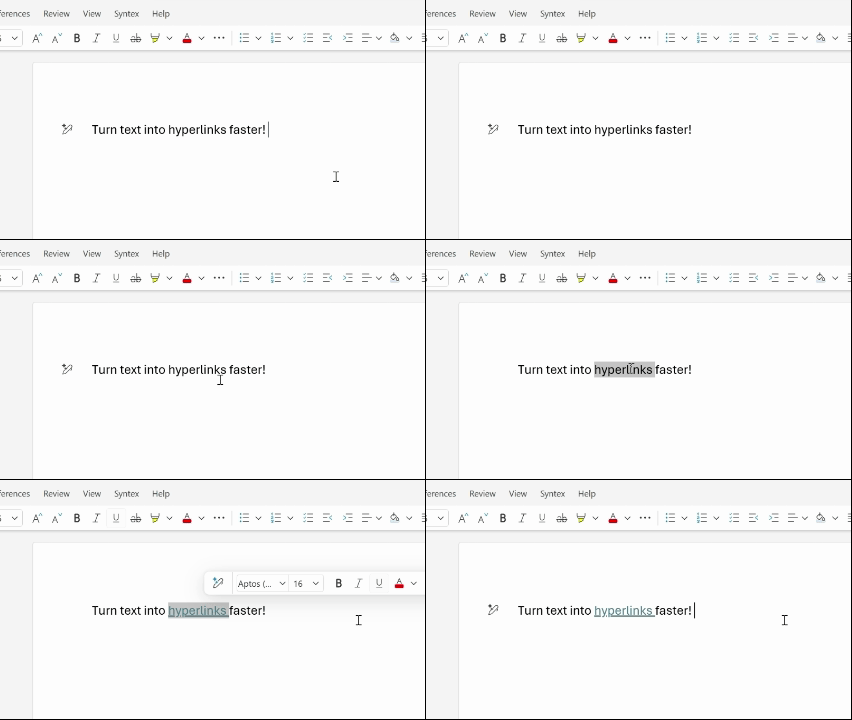
This can be used to link to SharePoint documents, product pages, or reference sources in a report. Use descriptive link text, such as “Installation guide,” so readers know what they will open, and check that recipients have permission to access the linked content.
7. Use Copilot prompts prepared by your organization
Microsoft 365 Copilot Chat allows users to access prompts prepared by their organization’s administrators. These templates can reflect internal terminology and workflows, giving employees a relevant starting point when working with AI.
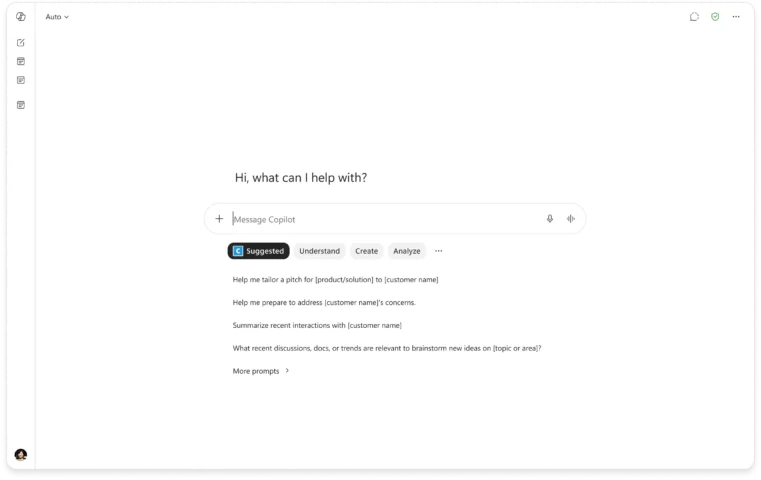
For example, a business can create prompts for summarizing meetings or preparing weekly reports in a consistent format. Users still need to add context and review the results. Access depends on Copilot licensing and whether the organization has configured the prompt templates.
Check feature availability before getting started
Availability of these seven features varies by application, platform, and update channel. Some are being rolled out gradually or require a separate Copilot license. Businesses should compare the Availability section in Microsoft’s guidance with the versions and accounts they actually use before introducing the features more widely.
Start with a specific use case, such as preparing an Excel report or checking audio in Teams. Once a small group is using the feature reliably, document the steps and share a short guide with employees who have similar needs.
Businesses evaluating office applications can explore Microsoft 365 Business Standard at Vietbay. To identify the right software plan and assess your Copilot needs, contact Vietbay for advice.
(Source: Microsoft)